Install Our Site as an App on Your Phone or Computer
Table of Contents
Did you know you can add this website to your phone or computer so it opens just like an app? You’ll get an icon on your home screen, it opens in its own window without the browser bars, and — best of all — it works offline once you’ve installed it. That means you can read posters and resources on a ward, in a basement on-call room, or anywhere else the Wi-Fi is patchy.
You don’t need to download anything from an app store. The whole process takes about 30 seconds. Pick the section below that matches the device you’re using.
On an iPhone or iPad (Safari)
You need to use Safari for this — not Chrome or another browser.
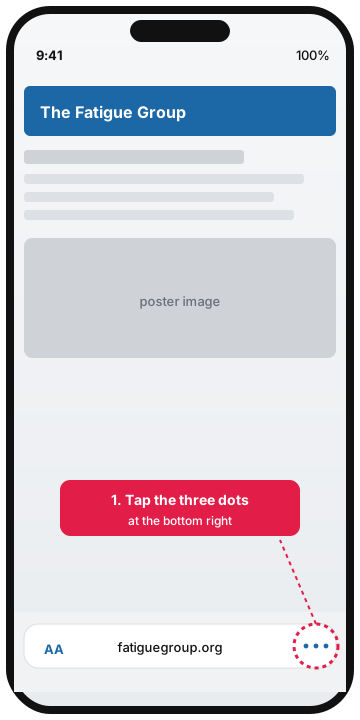
Step 1. Open fatiguegroup.org in Safari. At the bottom right of the screen, tap the three dots (···) button to open the menu.
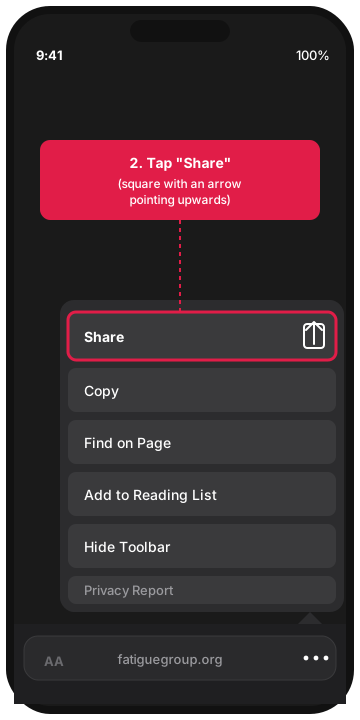
Step 2. A menu slides up. Tap the Share button — it looks like a square with an arrow pointing upwards out of it.
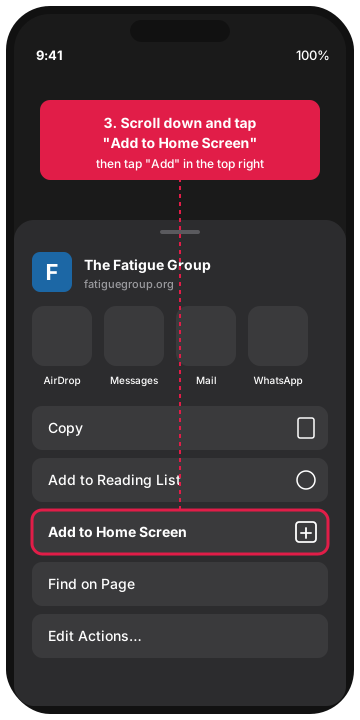
Step 3. The share sheet appears. Scroll down through the list of options until you see “Add to Home Screen”. Tap it.
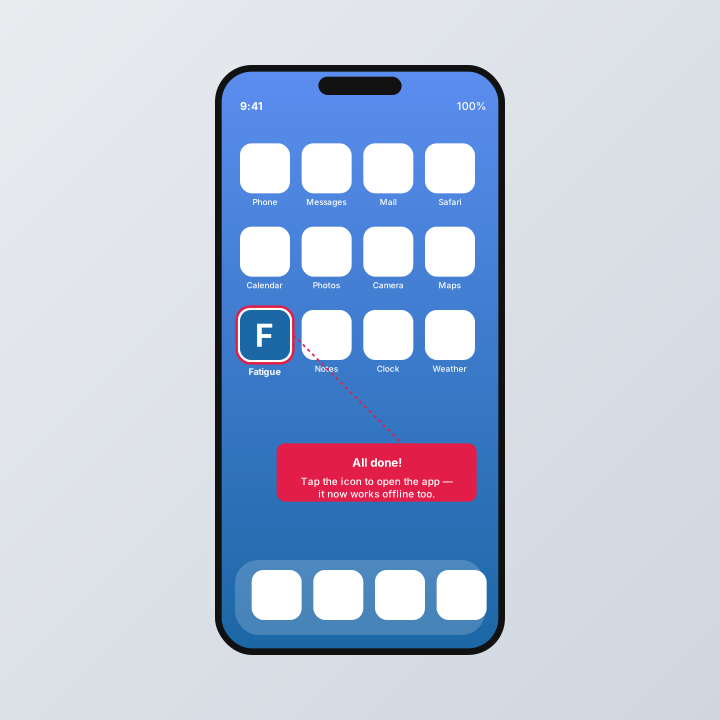
Step 4. You’ll see a preview of the app’s name and icon. Tap Add in the top right corner. That’s it — the app icon will appear on your home screen.
On an Android phone (Chrome)
Step 1. Open fatiguegroup.org in Chrome.
Step 2. Tap the three dots in the top right corner of the browser to open the menu.
Step 3. Scroll down the menu and tap “Install app” (sometimes it says “Add to Home screen”). Tap Install to confirm.
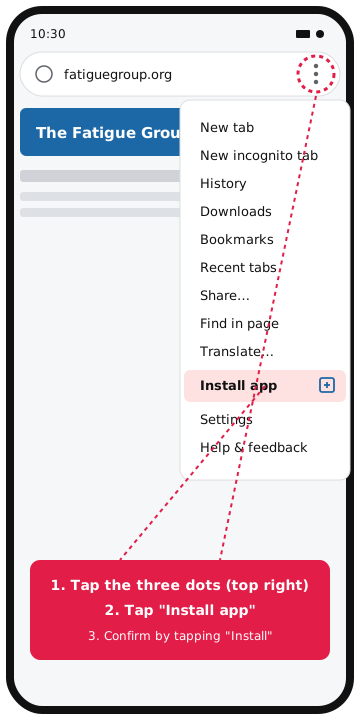
The app icon will appear on your home screen, ready to use.
On a Windows PC, Mac or Chromebook
This works in Chrome, Edge, and most modern desktop browsers.
Step 1. Visit fatiguegroup.org in your browser.
Step 2. Look at the right-hand end of the address bar at the top of the window. You’ll see a small install icon — it usually looks like a little screen with a downward arrow, or a “plus” symbol. Click it.
If you can’t see the icon, click the three dots (or three lines) menu button instead and look for “Install The Fatigue Group…” or “Apps → Install this site as an app”.
Step 3. A small box will appear asking if you’d like to install. Click Install.
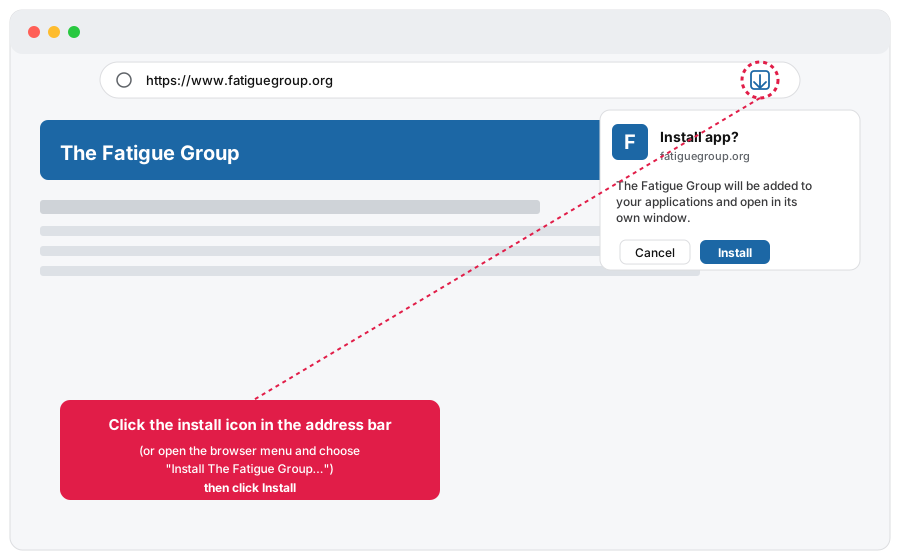
A shortcut will be added to your desktop, dock, or Start menu, and the site will open in its own window — no browser tabs, no address bar, just the site.
What you get once it’s installed
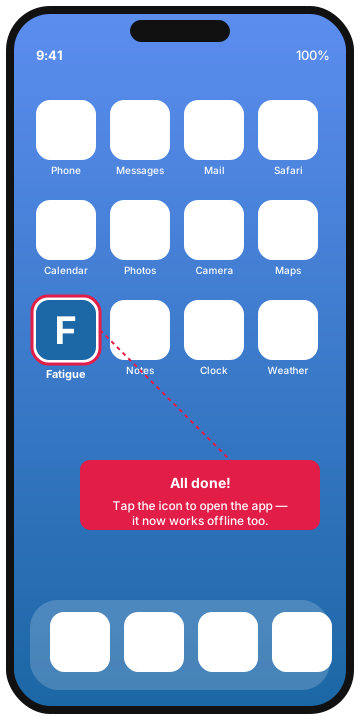
- An app icon on your home screen, desktop, or app list — no need to remember the website address.
- Its own window, without the browser controls cluttering the screen.
- Offline access to everything you’ve visited. When you first open the installed app, it will quietly save the pages, posters and resources in the background — so even if you lose signal in a basement department or on a long shift, you can still pull up the resources you need.
- No app store, no account, no updates to install. It’s still just the website — it’ll quietly stay up to date on its own whenever you’re online.
Removing it later
If you change your mind, you can remove the app the same way you’d remove any other:
- iPhone/iPad: press and hold the icon, then tap Remove App → Delete from Home Screen.
- Android: press and hold the icon, then drag it to Uninstall at the top of the screen, or tap Remove.
- Desktop: open the app, click the three-dot menu in its window, and choose Uninstall.
This won’t delete any of your data because the app doesn’t store any personal data — it’s simply removing the shortcut and the offline copy.
If you run into any problems, get in touch and we’ll happily walk you through it. And once you’ve installed it, please share these instructions with colleagues — the more people who have these resources to hand, the better.
